
Cranial Scanning Guide
For the person holding the phone. A true-scale 3D scan of the whole head for the cranial helmet.
Before anything else
What you need
Phone
iPhone Pro with LiDAR — iPhone 12 Pro or later, Pro or Pro Max only
Operating system
iOS 17.0 or later
Case ID and PIN
Issued by Osteo3d, one pair per patient. Request before the appointment.
Connection
A phone hotspot. A scan cannot be started without one, and the upload is 200–500 MB.
Install TestFlight from the App Store, then open https://testflight.apple.com/join/2etC8vPP on the iPhone and tap Accept, then Install.
Before the scan
Two settings that must be right
Set Auto-Lock to Never before scanning
Settings → Display & Brightness → Auto-Lock → Never. In this build, if the screen locks during recording the capture is cut short, and if it locks during upload the transfer stops. Set Auto-Lock back to your usual setting afterwards.
Finish the orbit within about 25 seconds
One steady lap around the head, then Finish. Fewer than 45 photos is not enough to build the helmet. Past about 25 seconds this build can show ring segments as covered when the phone has stopped recording new photos, so a longer scan does not add data.
Both are specific to build 13 and are removed in the next release.
In the room
The scan, in order
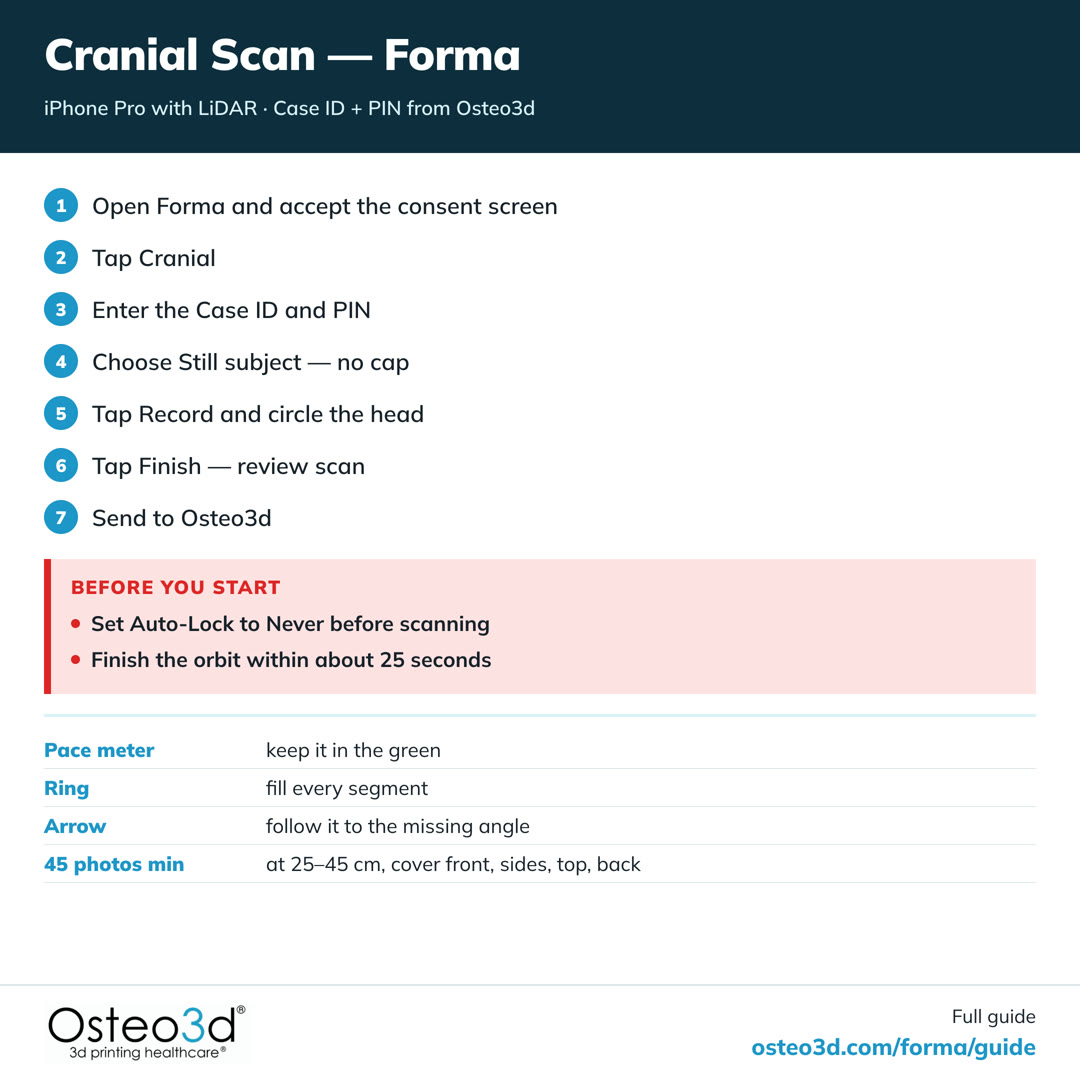
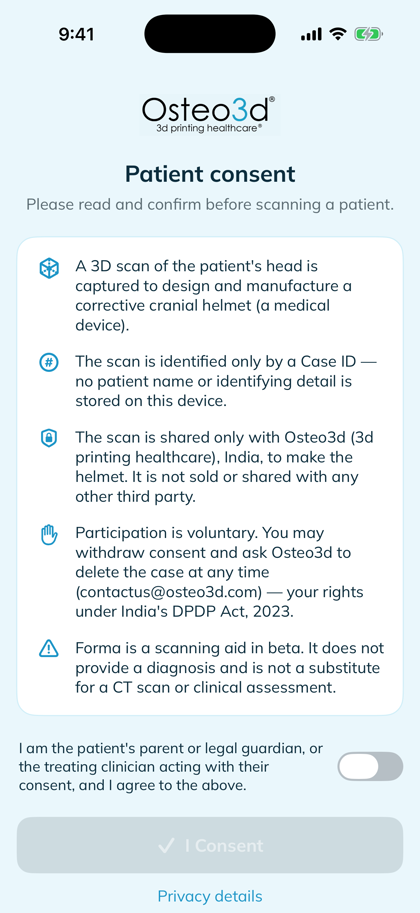
Open Forma and accept the consent screen
The patient consent screen appears on first launch only. Read it, tick the confirmation, tap I Consent.
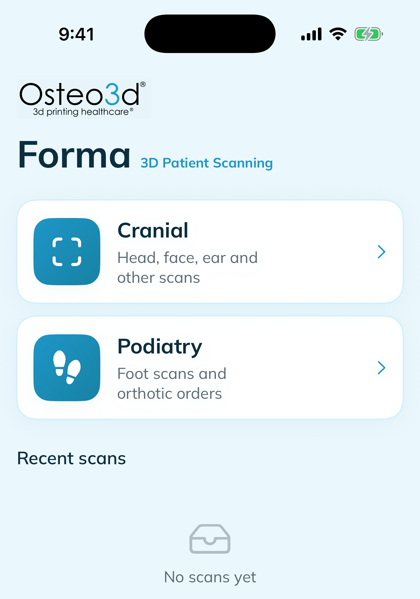
Tap Cranial
The home screen offers Cranial and Podiatry. Cranial covers head, face and ear scans.
Enter the Case ID and PIN
Both are issued by Osteo3d for this patient. Tap Proceed. An internet connection is required at this step.
Choose Still subject — no cap
This is the standard cranial scan. No cap and no markers are used.
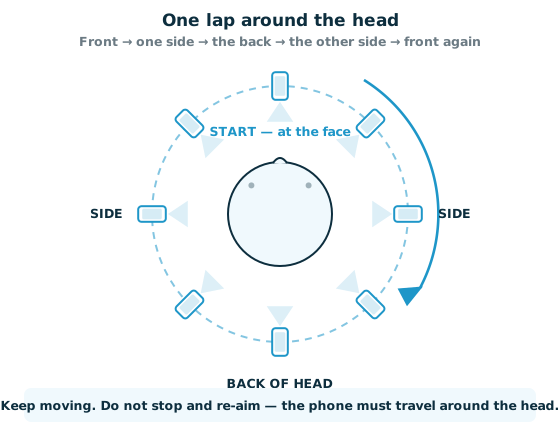
Tap Record and circle the head
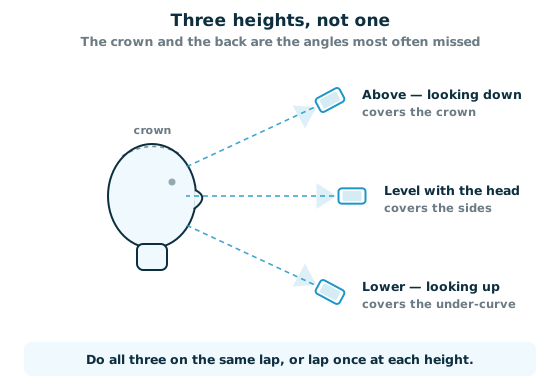
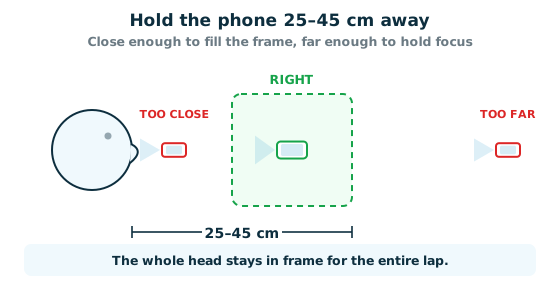
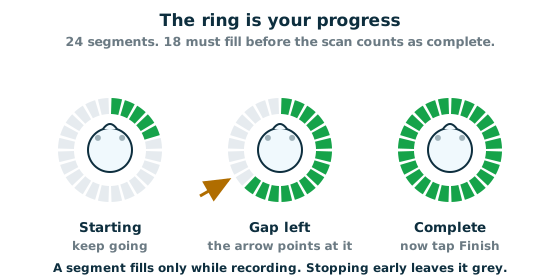
Hold the phone 25–45 cm away. Keep the pace meter in the green, follow the on-screen arrow to the next angle, and fill the ring. Cover front, sides, top and back.
Tap Finish — review scan
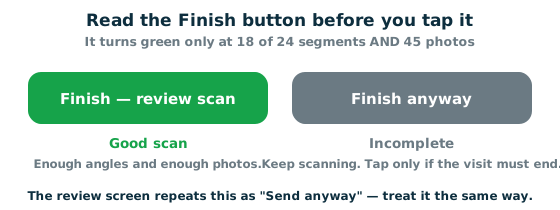
The Finish button is the quality check. Green "Finish — review scan" means enough angles and enough photos. Grey "Finish anyway" means the scan is short — keep scanning instead. The review screen then shows the photo count and ring coverage; retake if anything was missed.
Send to Osteo3d
Tap Send to Osteo3d, then Send Scan. Keep the app open and the screen on until Sent to Osteo3d appears.
“Finish — review scan”
Green. Enough angles and enough photos — tap it.
“Finish anyway”
Grey. The scan is short on angles, photos or both — keep scanning.
While recording
- Pace meter — keep it in the green
- Ring — fill every segment
- Arrow — follow it to the angle still missing
- 45 photos minimum, at 25–45 cm, covering front, sides, top and back
Rules that cost a case
Wait for "Sent to Osteo3d" before starting the next patient
Until that screen appears, the phone holds the only copy of the scan.
Never tap "Clear scan history"
It deletes local scans that have not been sent. There is no undo.
A scan cannot be started without a connection
The Case ID and PIN are checked online. Bring a phone hotspot — clinic Wi-Fi is often not sufficient, and the upload is 200–500 MB.
Getting a good scan
- Scan when the baby is asleep, feeding or calm. A still baby beats every setting in the app.
- Move slowly and evenly all the way around. Do not rush one side and linger on another.
- Keep the whole head in frame and hold a steady distance.
- Cover the crown and the back of the head — these are the most under-shot and matter most for helmet fit.
- Use bright, even, indirect light. Avoid window backlight and hard shadows.
- Keep hands, blankets and straps off the head during the orbit.
- A snug light cap over fine hair gives a cleaner scalp surface. Confirm with the clinician that it does not distort the shape being measured.
If something goes wrong
Troubleshooting
"This iPhone can't scan"
The phone has no LiDAR sensor. Forma needs an iPhone Pro or Pro Max, iPhone 12 Pro or later.
The Case ID or PIN is rejected
Check the connection first, then the characters. Case IDs start with CRN- and the PIN is 6 digits. Contact Osteo3d if both are correct.
The ring will not fill
Move further around the head rather than closer. The arrow points at the angle still missing. Segments only fill while Record is running.
The upload stops at 0% or stalls
Set Auto-Lock to Never, then tap Retry. The scan is safe on the phone and can be sent later from Home → Recent scans.
The baby moved during the scan
Keep circling — the app handles it and tells you the arc ended. Review the result and retake if the ring is short.
The scan was not sent before leaving
It is still on the phone. Home → Recent scans → open it → send with the same Case ID and PIN.
What happens next
- The scan uploads directly to Osteo3d. It cannot be exported or shared from the phone.
- A to-scale 3D model of the head is reconstructed by the Osteo3d team.
- The model is used to design and manufacture the cranial remoulding helmet.
- No patient name is stored in the app — a scan is identified only by its Case ID.
Questions during a visit: note the Case ID and what happened, then contact contactus@osteo3d.com or +91-99002 65669.